如何配置不同的设置?
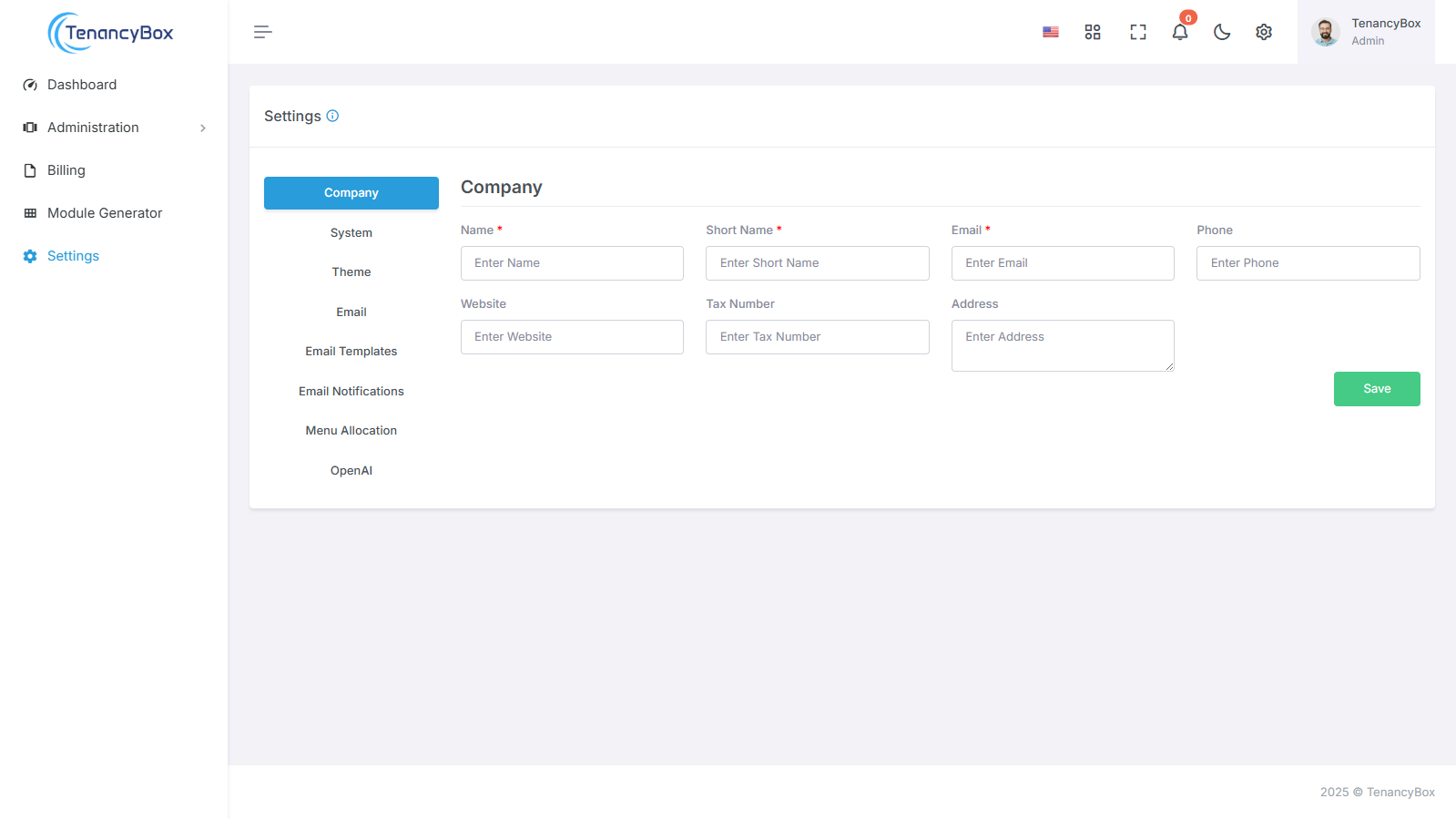
在这里,您将获得有关如何配置 TenancyBox 工具设置的完整指南。
1. 公司详情
要有效更新您的公司详细信息,请按照以下步骤:
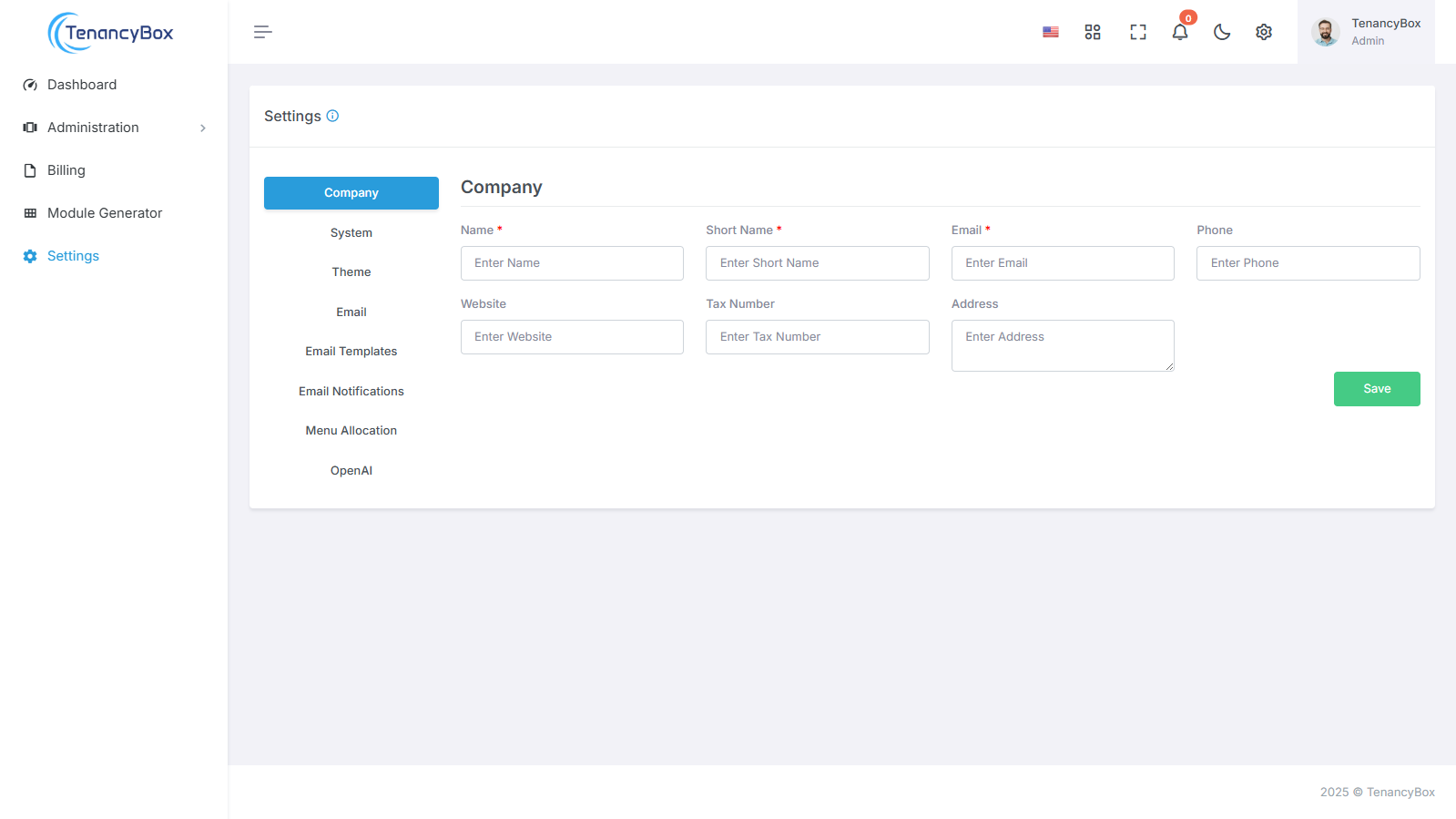
- 名称: 输入您公司的全名。
- 简称: 如果适用,请提供您公司名称的缩写版本。
- 电子邮件: 更新公司 电子邮件地址以确保响应能力。
- 电话: 提供公司 的联系电话号码。
- 网站: 更新公司 的网站 URL。
- 地址: 输入公司 的物理地址。
- 另外,为了接收每日工作 报告的电子邮件通知,请添加每日工作报告电子邮件到您的 偏好。
通过遵循这些步骤,您可以轻松确保您的 公司信息准确且最新,同时还 启用重要的每日工作报告通知。
2. 系统设置
定制您的 TenancyBox 体验与我们的 综合系统设置无缝结合。根据您的偏好来调整 您的需求精确使用以下字段:
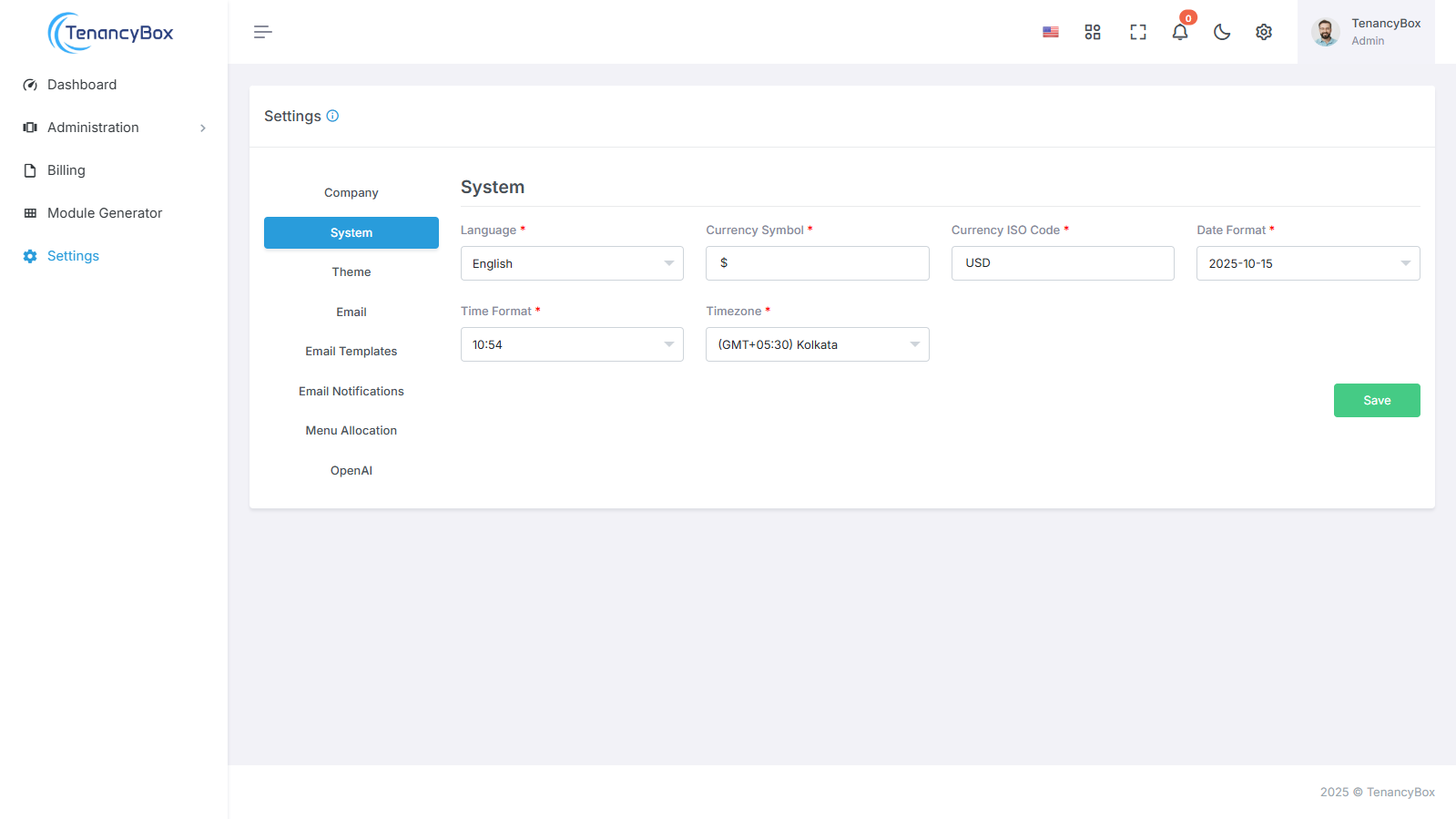
- Language: 选择从 14 内置语言导航 TenancyBox 在您偏好 语言。
- Currency Symbol: 定义 您的货币符号以匹配您的本地货币。
- Currency ISO Code: Specify the ISO code for your currency for accurate representation in financial transactions.
- Date Format: Customize the date format to align with your regional conventions.
- Time Format: Choose between 12-hour and 24-hour time formats to suit your timekeeping preferences.
- Time Zone: Set your time zone to accurately reflect your location.
With TenancyBox 's intuitive system settings, personalizing your experience has never been easier. Fine-tune TenancyBox to your exact specifications and enjoy seamless navigation tailored to your needs.
3. Theme Settings
To change your company logo, sidebar logo, and favicon in the system's theme settings, follow these steps:
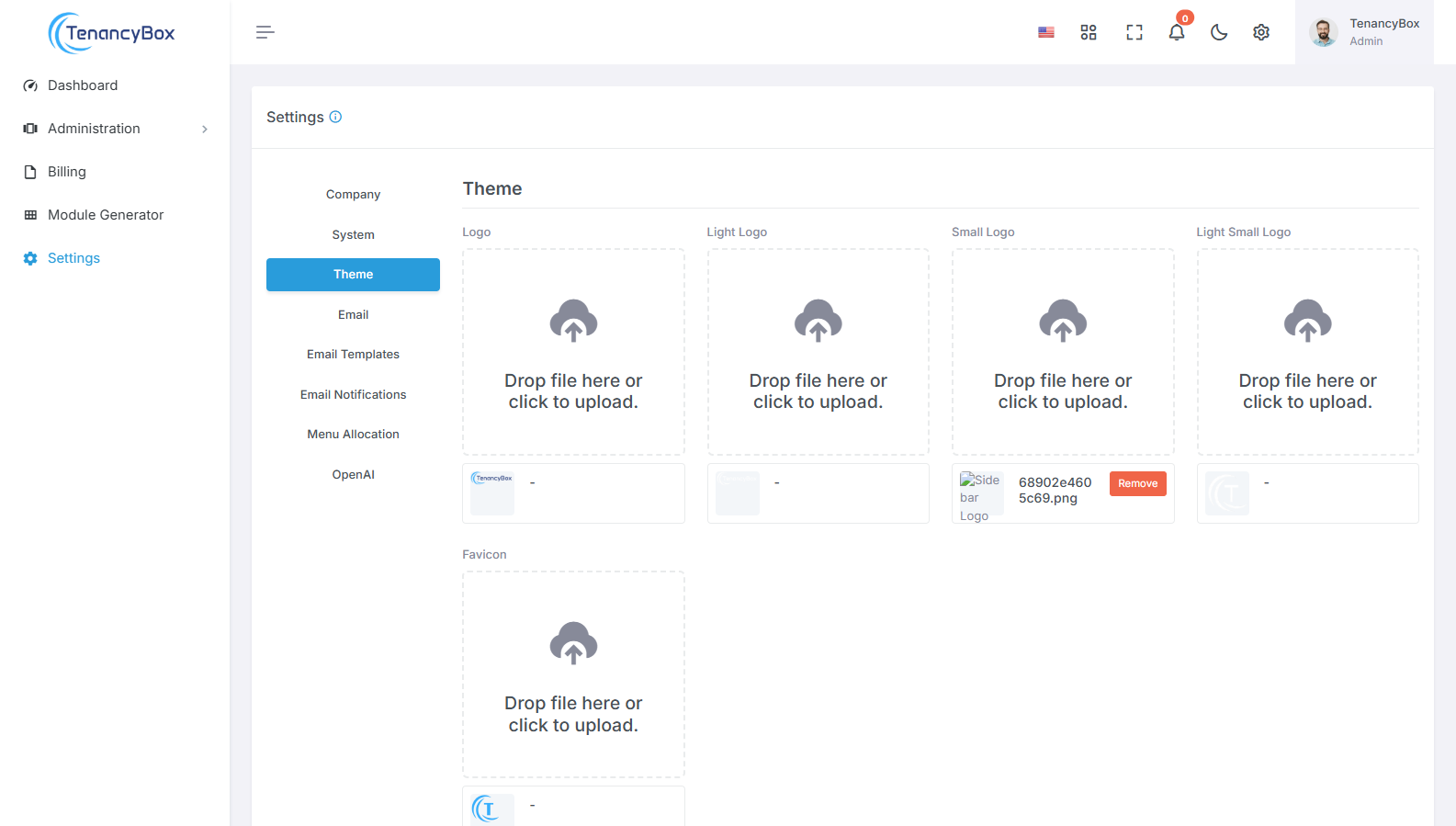
- Company Logo: Upload your company's logo image to replace the current one displayed in the system's header.
- Sidebar Logo: Upload a logo image specifically designed for the sidebar, ensuring it fits appropriately and maintains clarity.
- Favicon: 上传一个图标 image to represent your company's branding in web browser tabs and bookmarks.
By updating these theme settings with your company's logos and favicon, you can ensure consistent branding and visual representation across the system, enhancing recognition and professionalism.
4. Email
To change your Change your mail settings for outgoing mail from the tool.
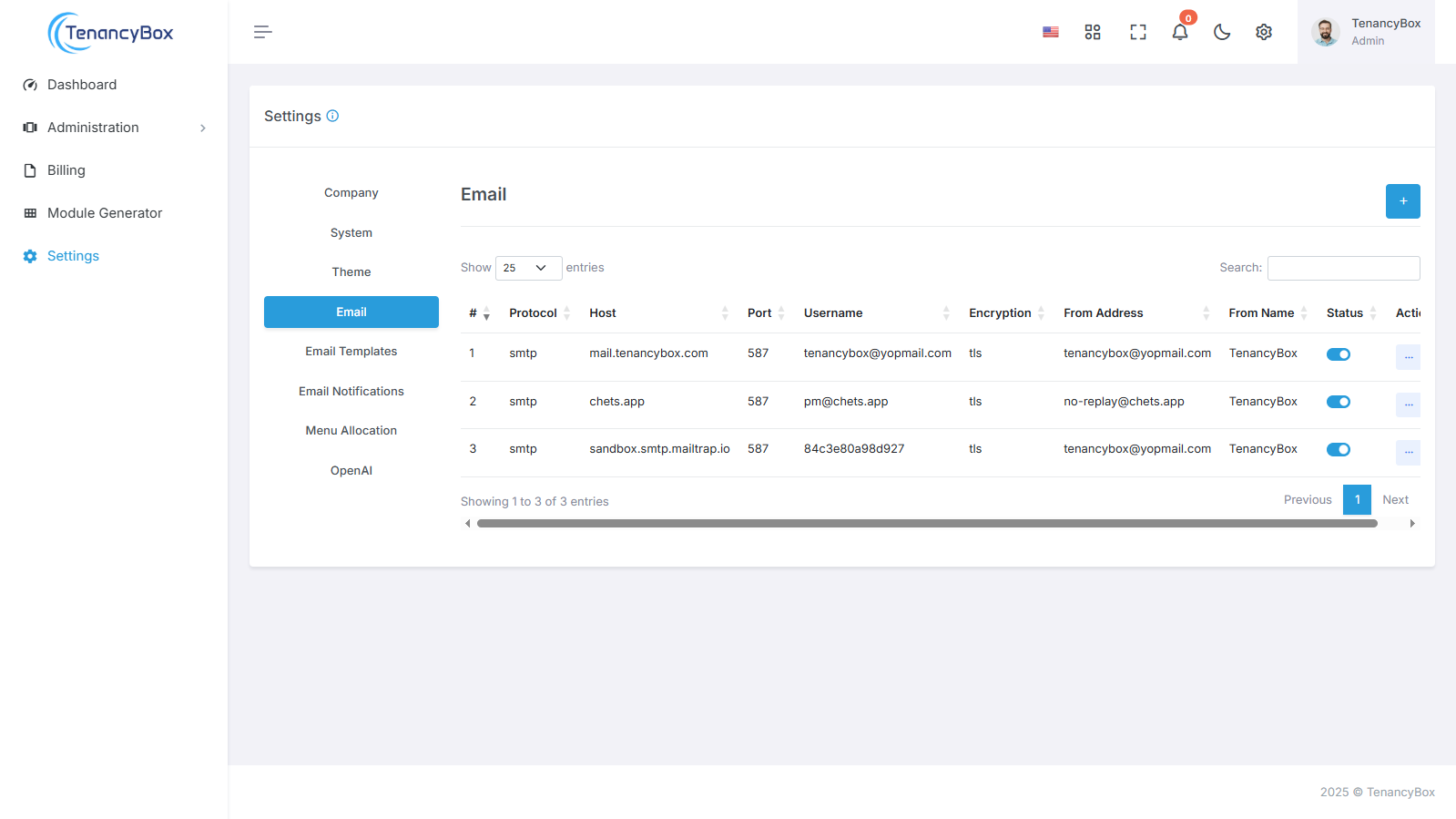
- Mail Protocol: 您的邮件 protocol for ex. SMTP.
- Mail Host: 您的SMTP邮件 server host.
- Mail Port: 外发邮件 port.
- Mail Username: 外发 mail address.
- Mail Password: 外发 mail password.
- Mail Encryption: It should be tls or SSL.
- Mail From Address: It refers to the sender's email address.
- Mail From Name: It refers to the sender's name.
- Limit On Campaign Outgoing Mail: It refers to the maximum number of emails that can be sent as part of a campaign per Hour.
通过配置这些电子邮件设置与您的首选邮件协议、主机、端口和安全选项,您可以确保可靠和安全地传出邮件,增强通信和专业化跨越系统。
5. 电子邮件模板
要修改电子邮件模板的内容并包括动态变量以个性化主题行和消息,请执行以下步骤:
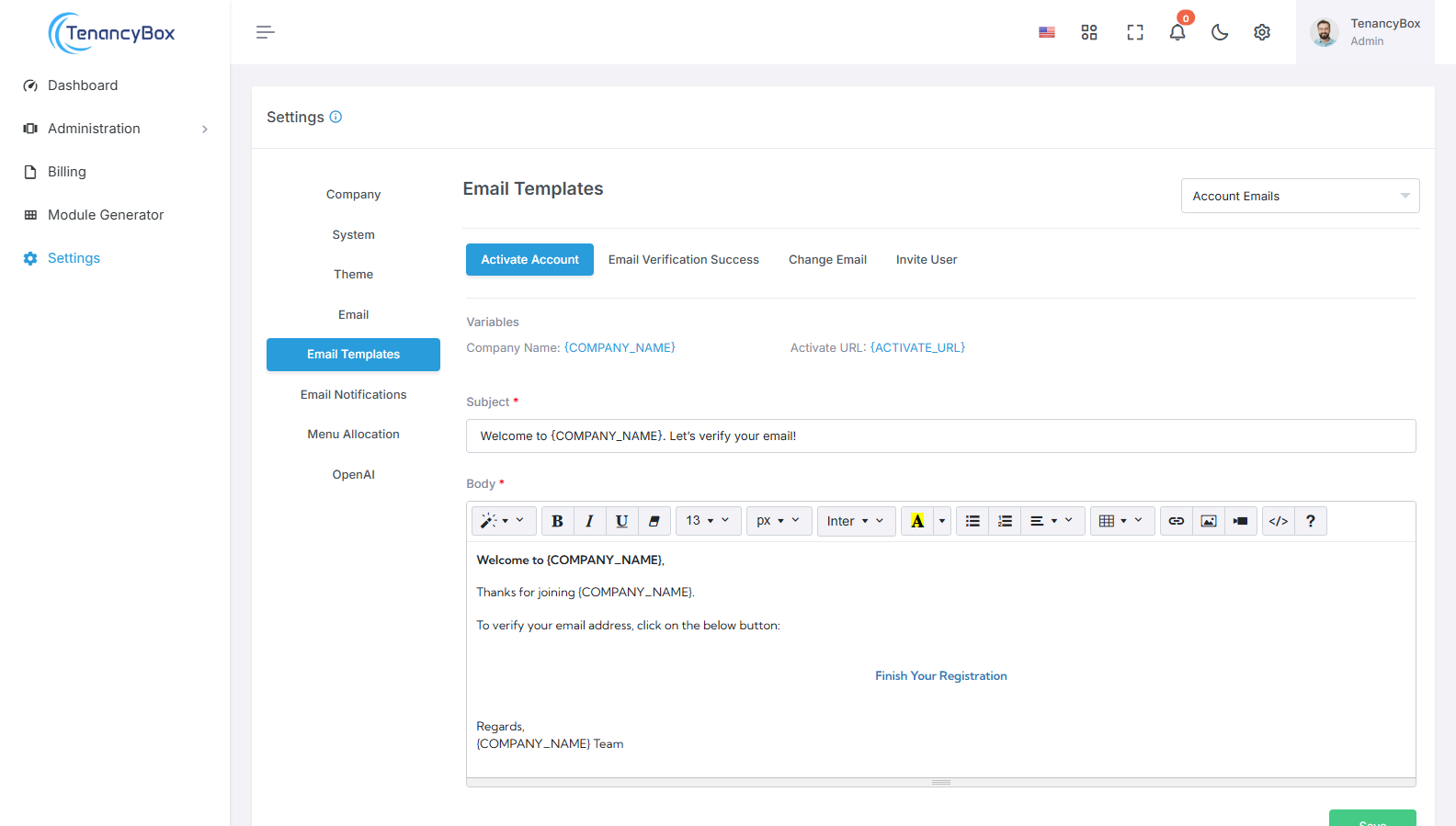
- 主题: 定制电子邮件模板的主题行以包括动态变量,如{USERNAME}、{COMPANY_NAME}等。这些变量将在邮件发送时替换为实际用户特定或系统特定的值。
- 消息: 修改电子邮件模板的正文以包括动态变量以个性化消息。合并占位符如{USERNAME}、{COMPANY_NAME}等,这些将被相关信息替换基于收件人或系统上下文。
通过在电子邮件模板中利用动态变量,您可以量身定制通信以个体用户或情况,增强参与度和相关性。
6. 电子邮件通知
要管理电子邮件通知的特定模块,请执行以下步骤:
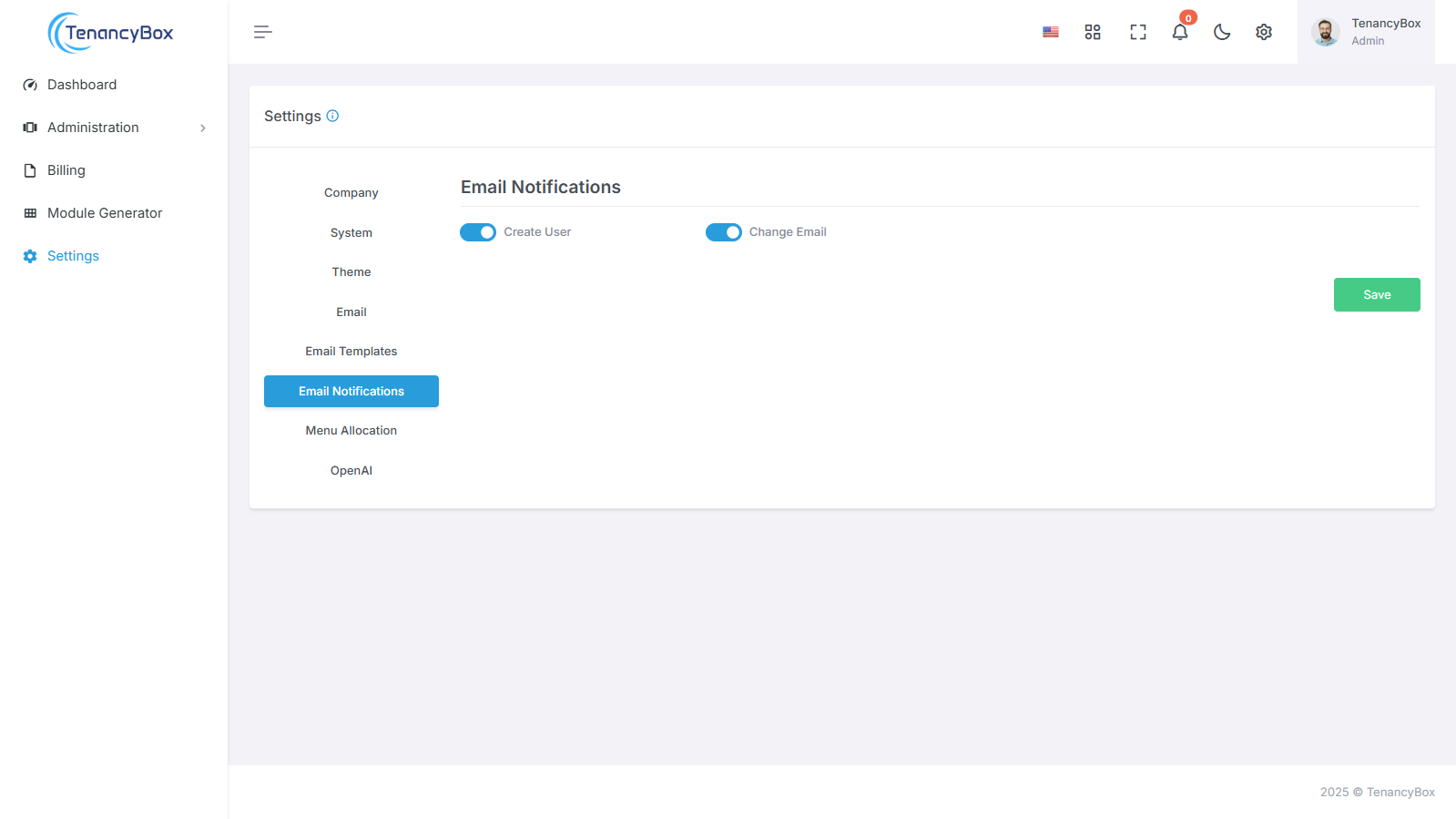
- 访问系统设置中的电子邮件通知部分。
-
您将找到一个模块列表,用于配置电子邮件通知。
这些可能包括:
- 创建用户
- 更改电子邮件
- 切换每个模块的设置以根据您的要求打开或关闭电子邮件通知。
- 保存更改以更新您的电子邮件通知首选项。
通过为个人模块定制电子邮件通知设置,您可以根据特定活动调整您的通信偏好,并在工作流中保持更新。
7. 菜单分配
根据您的偏好自定义侧边栏菜单,轻松使用以下功能:
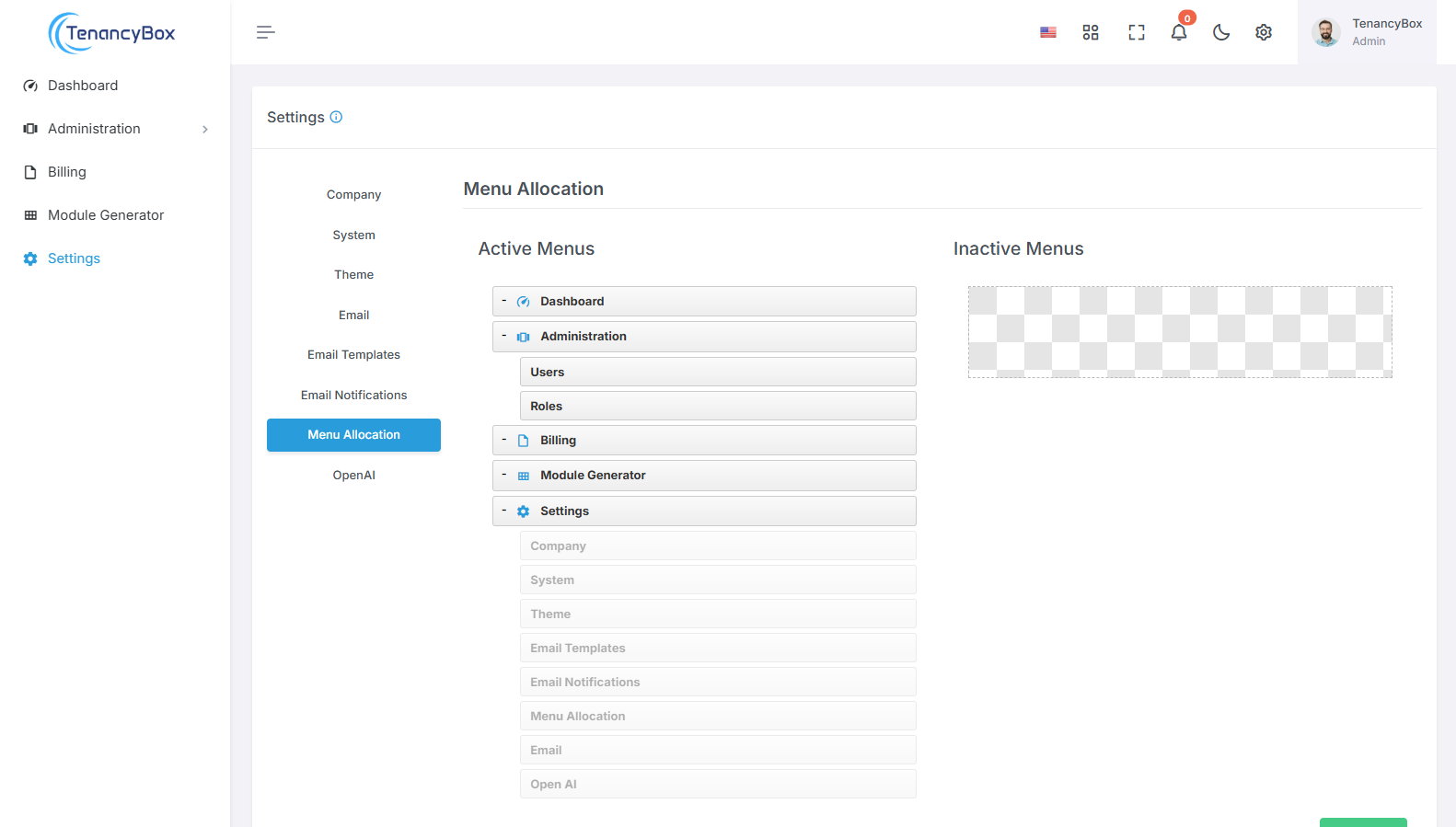
- 拖放: 单击并拖动菜单项以在侧边栏中重新排列其位置。此直观操作允许您根据您的首选顺序组织菜单。
- 激活/停用: 通过拖动和放置来启用或禁用菜单项。只需将菜单项移动到侧边栏的所需部分以激活或停用它。
通过利用拖放功能,您可以轻松调整侧边栏菜单的布局和内容,确保轻松访问最相关的功能和功能,基于您的风格和工作流要求。
8. 开放AI
使用API密钥集成OpenAI到您的平台,启用高级AI驱动功能,如文本生成和图像创建。
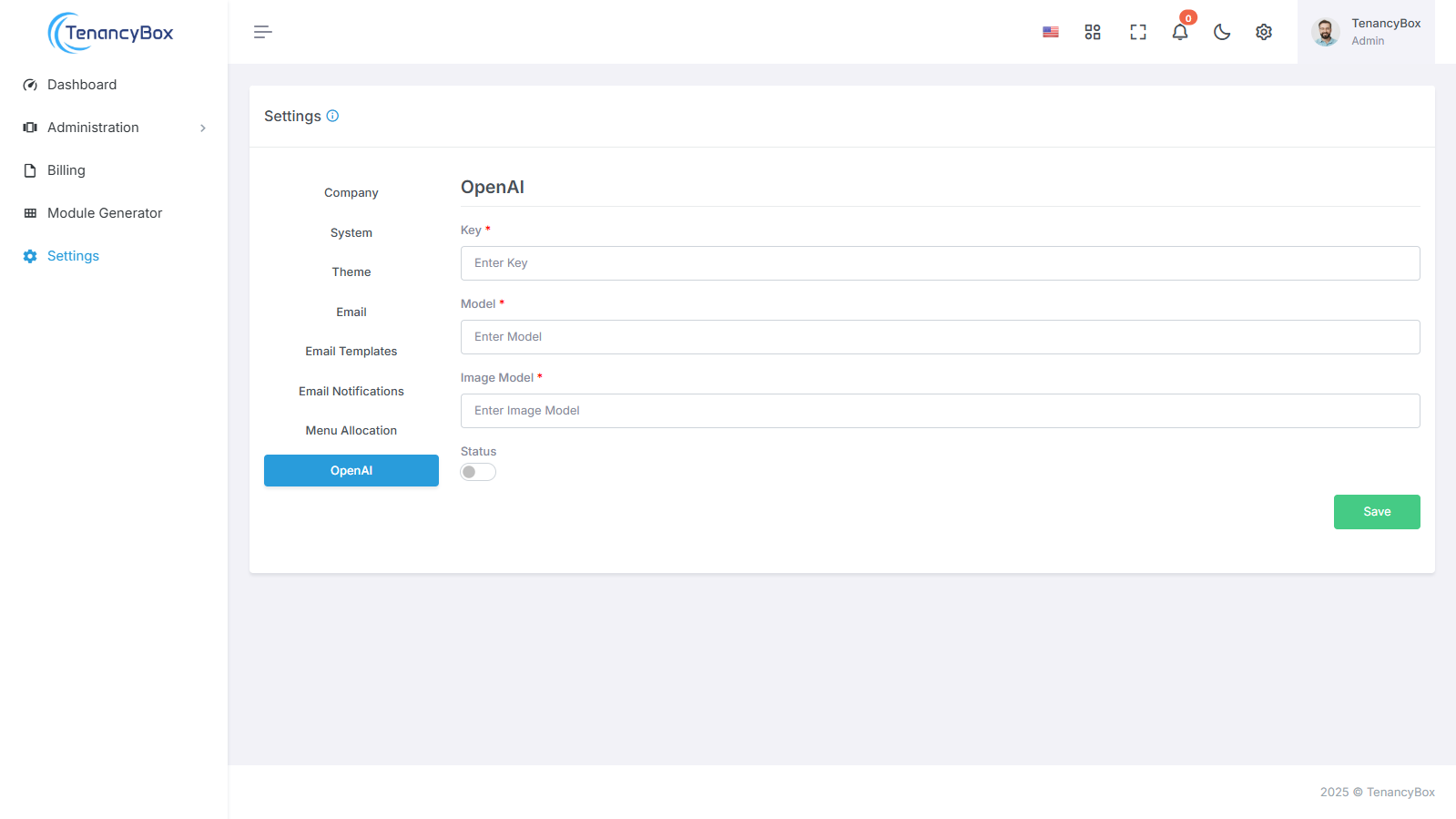
- OpenAI Integration: 利用 Open AI 的强大 AI 模型,通过配置 API 密钥、模型 选择和状态监控来实现无缝的 AI 驱动 功能。
- AI-Powered Features: 启用 AI 功能,通过配置 Open AI 密钥, 选择文本和图像模块,并监控状态以 优化性能。
这本综合指南涵盖了各种 设置的配置,使用 TenancyBox 工具集成。用户可以 高效地管理和定制每个方面以量身定制 平台以满足其特定业务需求和流线 操作有效地。